
Xcode Simulator Storage: Runtimes, Devices, and Safe Cleanup
AskClean Team · Updated 2026-09-29
Xcode Simulator storage includes shared operating system runtimes and each virtual device's apps and test data. Start with a read-only inventory, then use Xcode or simctl to remove devices or runtimes you no longer need. Save any test data first, and avoid deleting the entire CoreSimulator directory.
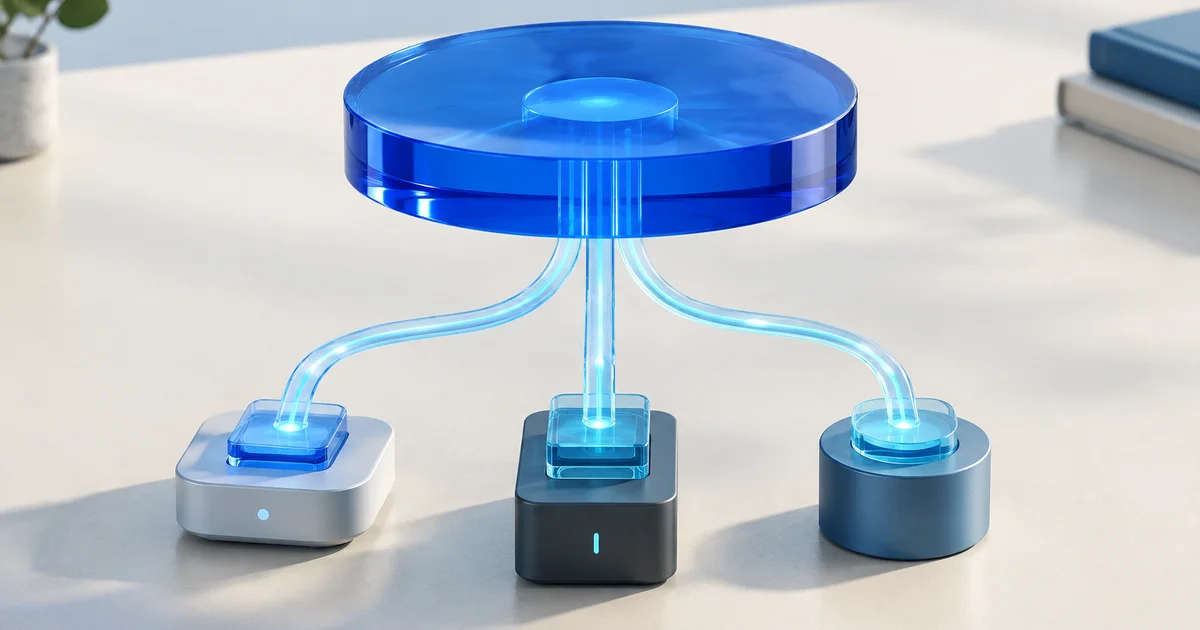
Check runtime and device storage separately
A runtime is the OS image shared by simulator devices. Each device has its own apps, documents, caches, and test state. Deleting a device removes that local data, even if the device is old or marked unavailable. Removing a runtime prevents devices that need it from starting.
Start by listing your runtimes and devices, then measure their storage. The downloadable script below measures common developer directories and lists simulator state. It neither deletes files nor asks for administrator access. It does not measure every system-wide runtime location, so also check runtime sizes in Xcode's component manager.
Delete unavailable and unused simulator devices
Run xcrun simctl list devices first. The xcrun simctl delete unavailable command deletes every device marked unavailable, including its apps and test data. Use it only if you want to remove the entire unavailable list. A compatible Xcode version or a reinstalled runtime may let you access a device again while its data remains intact. Export anything you need before deleting it; deleted device data does not go to the Trash.
For devices that are available but no longer needed, use Xcode's simulator manager. In versions with the Devices and Simulators window, open Window > Devices and Simulators > Simulators. Delete only devices you no longer test with, and export any apps' documents or test data you need first.
Erasing a device's contents and settings keeps the device but removes its apps and data. Deleting the device removes both its data and its device record. Neither operation provides a Trash recovery step. Keep the device if you cannot export or recreate state you still need.
Remove old platform runtimes in Xcode
Open Xcode Settings > Components (Platforms in some earlier releases). Installed simulator runtimes are listed with their versions and sizes. Keep the OS versions used by your tests, including versions needed to reproduce customer-reported bugs. Remove only runtimes you no longer need.
Use Xcode's own component manager for runtimes. It understands installed packages and dependencies; manually deleting opaque runtime bundles can leave Xcode reporting a component that is missing on disk.
Measure reclaimed space correctly
Record the relevant directory sizes and available disk space before cleanup. Remove one category, then repeat the same measurements. The audit script formats du's disk-usage totals into readable units; it does not measure the exact increase in available space. For runtime removal, also check Xcode's component list because the script does not measure every runtime location.
The space you can reclaim depends on what is installed. A new Mac with one required runtime may have little to remove; a development or CI machine used for years may have several unused runtimes and devices. Compare your own measurements instead of expecting a fixed number of gigabytes.
Start a device using each runtime you intend to keep and run a representative app or test. Confirm that any device state you chose to preserve is still available. If a required runtime is missing, reinstall it through Xcode before continuing. Reinstalling a runtime does not restore app data from a device you deleted.
What not to delete
Do not recursively erase ~/Library/Developer/CoreSimulator just because it is large. That directory includes current devices, application containers, logs, caches, and metadata that CoreSimulator expects to remain internally consistent.
Treat Xcode Archives separately from simulator storage. An archive can contain an app build and dSYM files needed to investigate crashes. You may also need the archive to export or re-sign a build. Keep archives needed for supported releases, and verify a usable backup before removing a local copy through Xcode Organizer.
What each cleanup removes
Check what you would lose before choosing a cleanup target. Use the audit script and Xcode's component manager to measure storage on your Mac.
| Item | Where to inspect | What deletion changes |
|---|---|---|
| Unavailable devices | xcrun simctl list devices | Deletes local apps and test data. An unavailable device can still contain data worth keeping. |
| Available devices | Xcode > Devices and Simulators | Removes installed apps and test state for the selected virtual device. |
| Platform runtimes | Xcode Settings > Components | Removes the OS image. Reinstall a compatible runtime to test that OS again; this does not restore deleted device data. |
| CoreSimulator caches | ~/Library/Developer/CoreSimulator/Caches | Inspect their size, but leave unfamiliar cache files alone. This guide does not validate manual cache deletion. |
This table explains the effects of removal; it is not a measured cleanup result. No simulator device or runtime was deleted for this revision. Paths and interface labels vary by Xcode release.
FAQ
Is xcrun simctl delete unavailable safe?
Use it only after reviewing the complete unavailable list: it deletes every device in that list and its local apps and test data. If any device contains data you still need, keep it and check whether a compatible Xcode version or runtime can make it accessible. Device deletion does not move its data to the Trash.
Can I delete every simulator device and recreate them?
Yes, if you do not need the apps and data stored inside them. Xcode can create devices again, but local test accounts, downloaded fixtures, keychain state, and app containers on those simulators will be gone.
Why is CoreSimulator still large after deleting unavailable devices?
The command removes devices marked unavailable. It does not remove installed runtimes or available devices. Check runtime sizes in Settings > Components and review the remaining devices in Xcode's simulator manager.
Does deleting DerivedData remove simulator runtimes?
No. DerivedData contains project build products and indexes. Simulator runtimes and device data are stored separately and need their own review in Xcode or simctl.
Sources